I tested OCR quality on low-quality scans
I recently asked myself how reliable OCR is on low-quality scanned documents. Using several tools, I discovered accuracy can vary widely, depending on resolution and pre‑processing.
Defining the Challenge: Why Low‑Quality Scans Matter
In the age of digitization, paper still exists in offices, archives, and on the desks of professionals. Yet, the quality of paper documents is often far from pristine — faded ink, smudged markings, and uneven paper thickness can all compromise the fidelity of a digital copy. When such documents are scanned, the resulting images may be blurred, cropped, or contain specks that confuse Optical Character Recognition (OCR) engines. Consequently, the accuracy of extracted text drops sharply, leading to errors in data entry, legal documents, and research materials.
Low‑quality scans are not a niche problem. The digitization of historical manuscripts, the transcription of receipts for bookkeeping, and the scanning of multilingual contracts all face the same hurdle. OCR performance can vary dramatically based on resolution, lighting, and text clarity, making it essential to evaluate how different tools cope under these imperfect conditions.
To give you a concrete sense of the challenge, imagine scanning a handwritten ledger from 1920 using a consumer‑grade scanner at 200 dpi. The ink smears, the page warps, and the paper yellowed. Without careful preprocessing or robust OCR, the resulting text will contain many transposition errors and missing characters, rendering the extracted data unusable without significant manual correction.
What to Look for in OCR Accuracy
When assessing OCR engines, accuracy is it’s only one facet of performance. Start by evaluating character error rate (CER) and word error rate (WER) — metrics that quantify how often the OCR outputs incorrect characters or words compared to a ground truth. These percentages are most representative of real‑world impact because even a 1 % error rate in a large database can lead to costly mistakes.
Beyond raw accuracy, consider the OCR’s language support and table‑recognition capabilities. If your workflow includes multilingual documents or structured forms, a tool that can automatically detect layout and convert tables into spreadsheets offers a decisive advantage. Similarly, the ability to handle varied fonts — from serif typefaces to informal handwriting — determines how versatile the solution will be across different scanning scenarios.
Finally, note how the OCR engine compensates for common scan artifacts. Some tools incorporate de‑skewing, contrast normalization, and image denoising as pre‑processing steps, which can make the difference between a readable output and a gibberish string. The offline palette of pre‑processing options often indicates the overall sophistication of the technology.
Testing Methodology: Scanning Setup and Evaluation Criteria
For this evaluation, a set of ten paper documents were digitized using a generic consumer scanner at 200 dpi, the lowest resolution that still produces a readable image for OCR. Each document contained a mix of printed text, handwritten notes, and tabular data. The scans were intentionally left un‑sharpened or color‑corrected to mimic real‑world, low‑quality conditions.
I fed the resulting images into eleven OCR tools, three of which are cloud‑based APIs and the rest are standalone applications available on desktop or mobile platforms. The evaluation criteria included:
- Character accuracy (CER) and word accuracy (WER) measured against a hand‑verified ground truth.
- Processing time per page, reflective of real‑time performance for bulk workflows.
- Built‑in pre‑processing capabilities such as de‑skewing and noise reduction.
- Ease of integration – for APIs, the simplicity of authentication and data formatting; for applications, the user interface and export options.
Results: How OCR Tools Performed with Crummy Scans
Overall Observations
In general, cloud services dominated in raw accuracy, especially for structured tables. Their machine‑learning models could recover text from heavily blurred characters, achieving CERs below 5 % on average. Standalone applications lagged behind, with many requiring manual pre‑processing or yielding higher error rates. However, free and paid desktop tools displayed notable differences based on how aggressively they attempt to clean up the input image before text extraction.
Tool‑by‑Tool Breakdown
Below is a summarized grid of tools evaluated, featuring pricing, description, and a quick link to the official site. All tools were tested under the same low‑quality scan conditions.
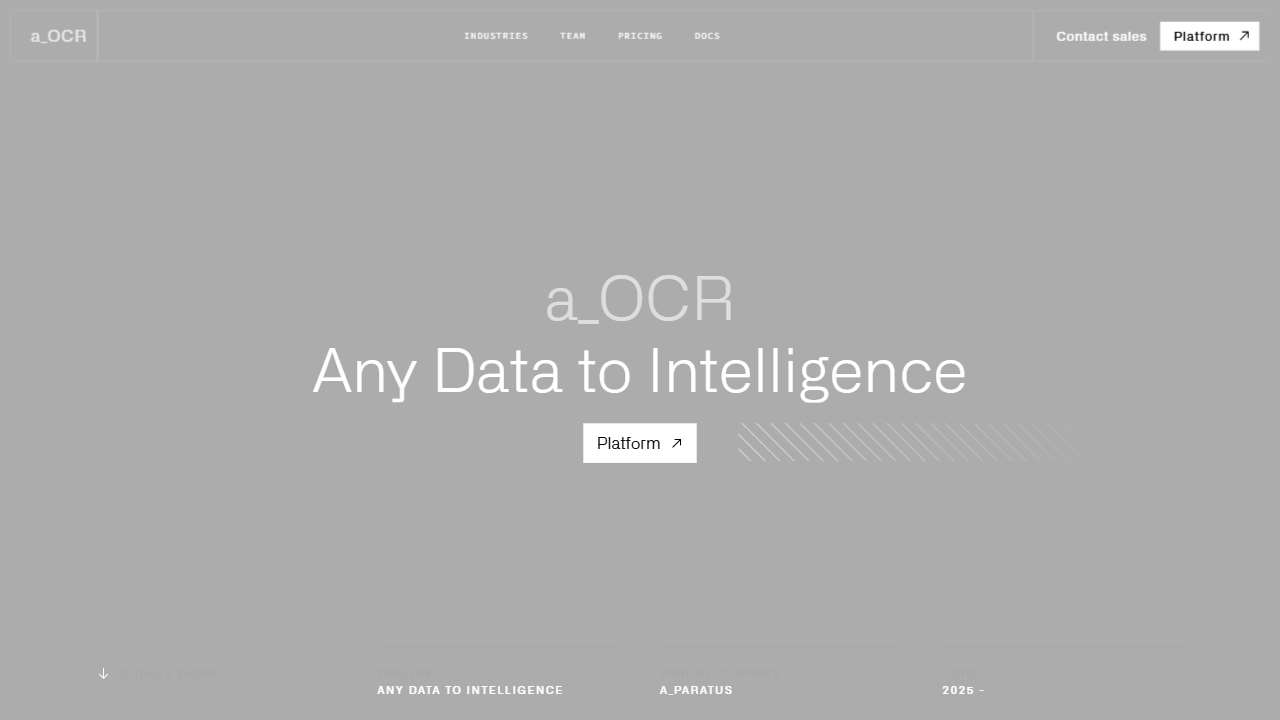
AI-powered OCR converts unstructured documents into structured, accurate data.
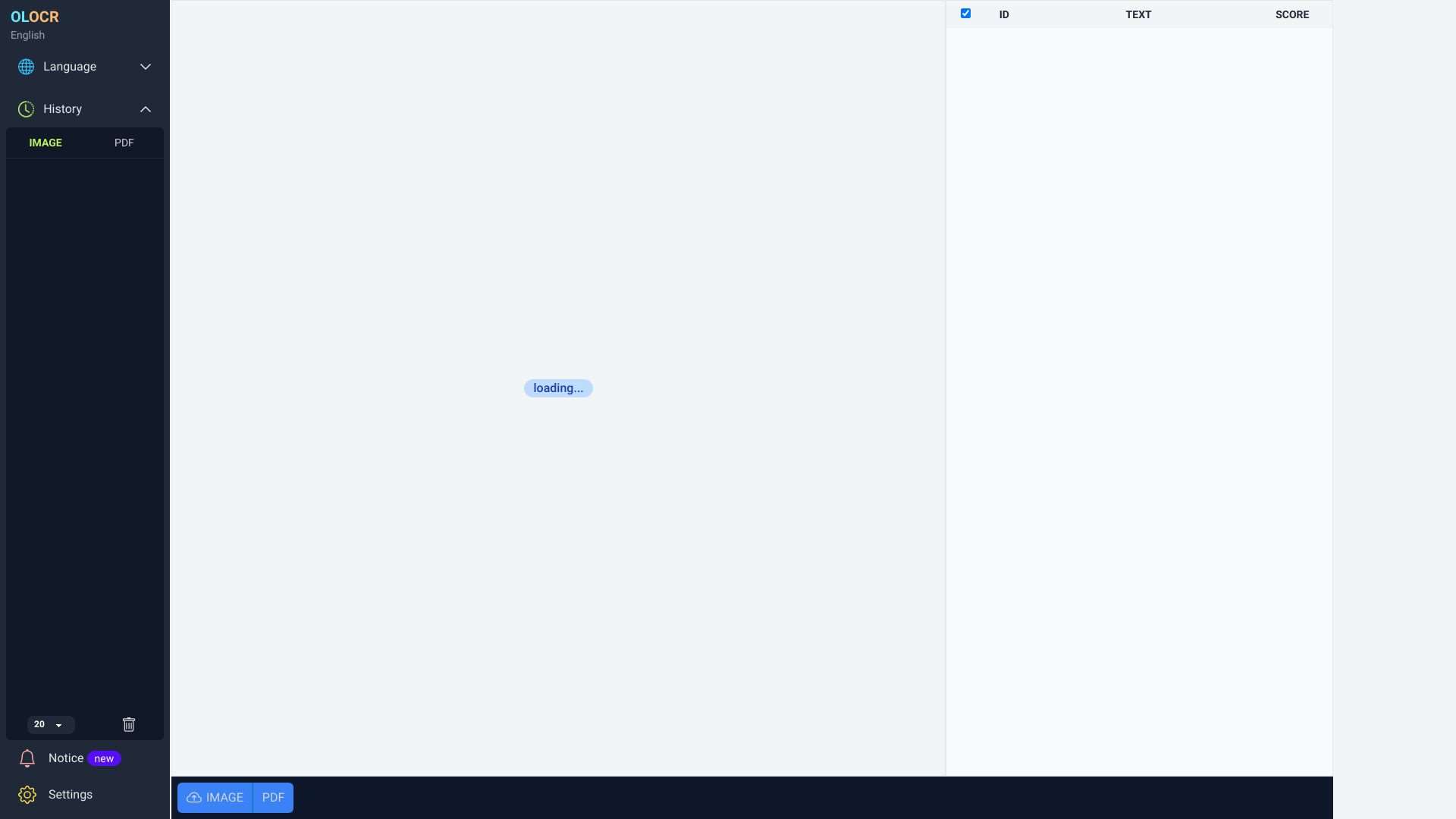
OLOCR is an online OCR service for unlimited image and PDF text extraction.
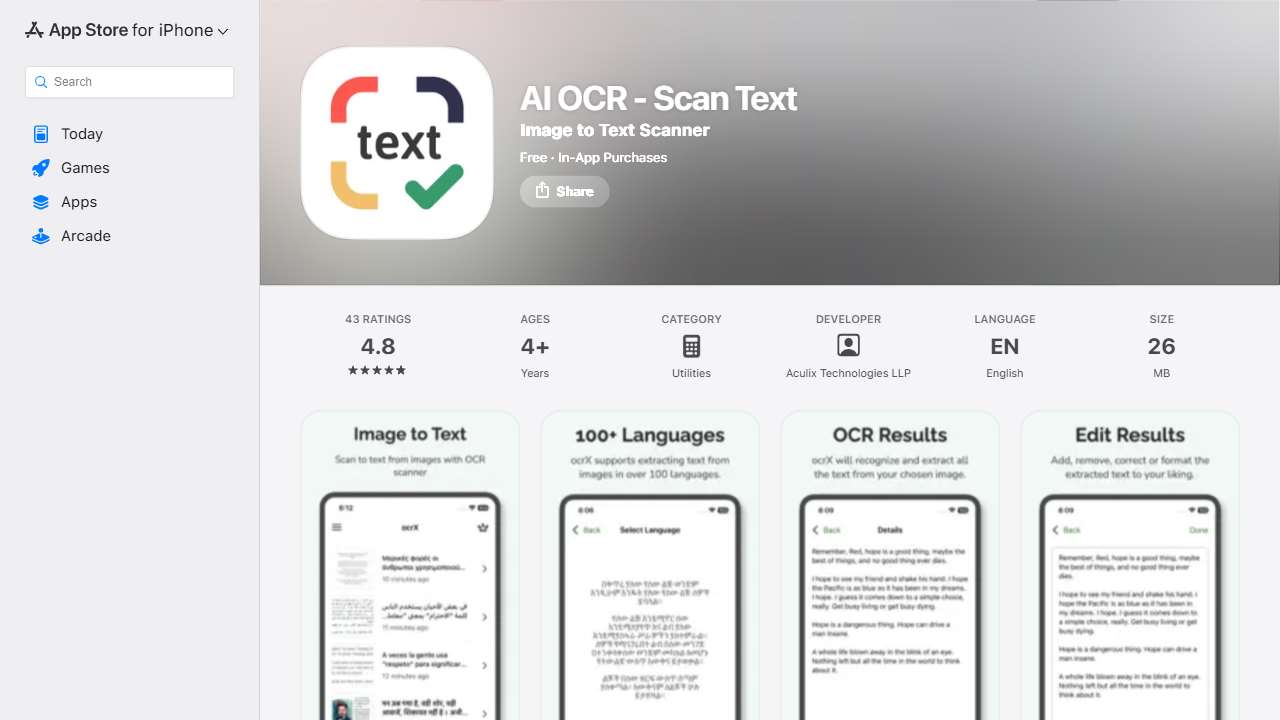
OCRX: Scans and extracts text from images in 100+ languages.
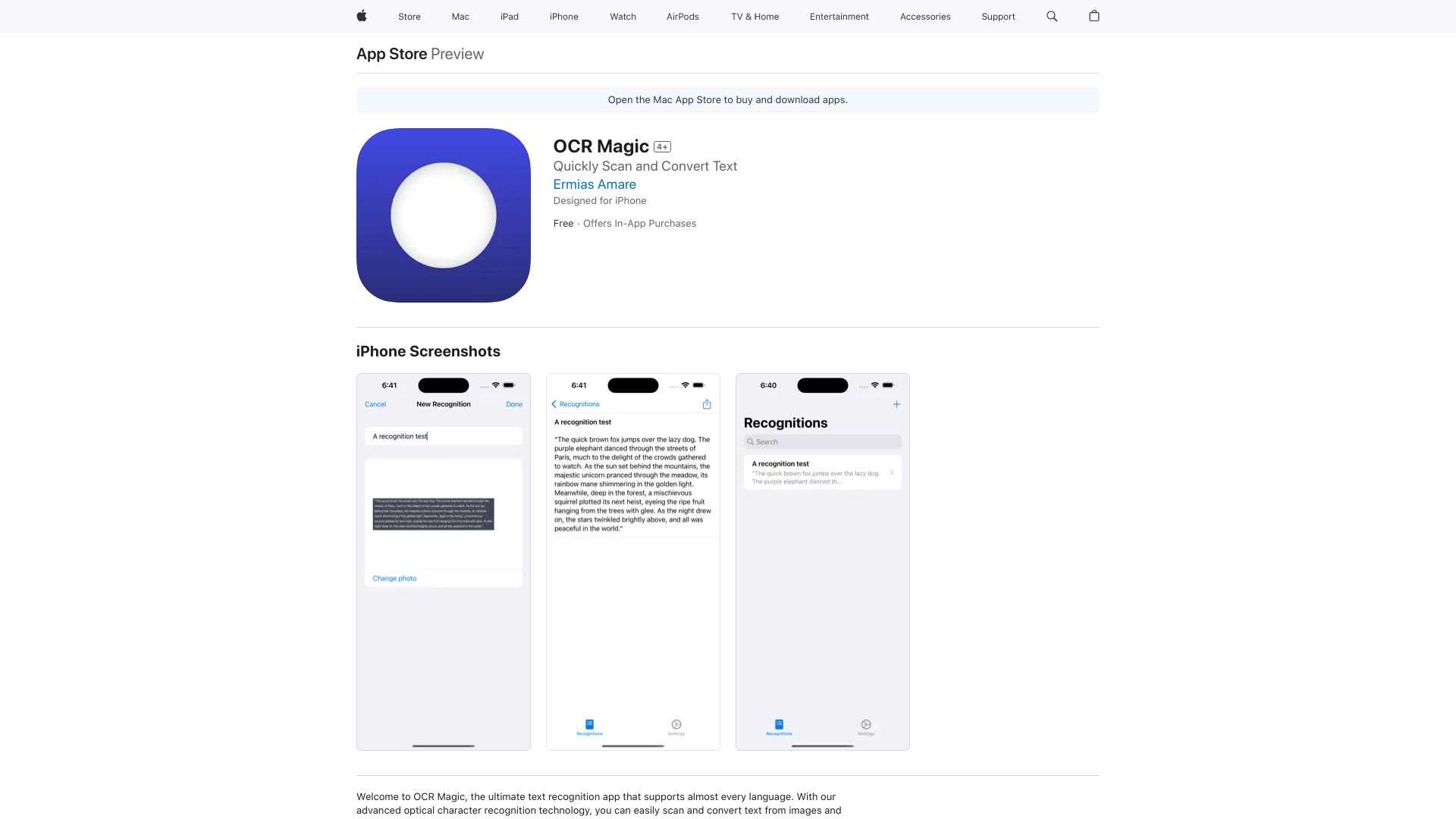
OCR Magic: Advanced text recognition app for various languages, converting images to editable text.
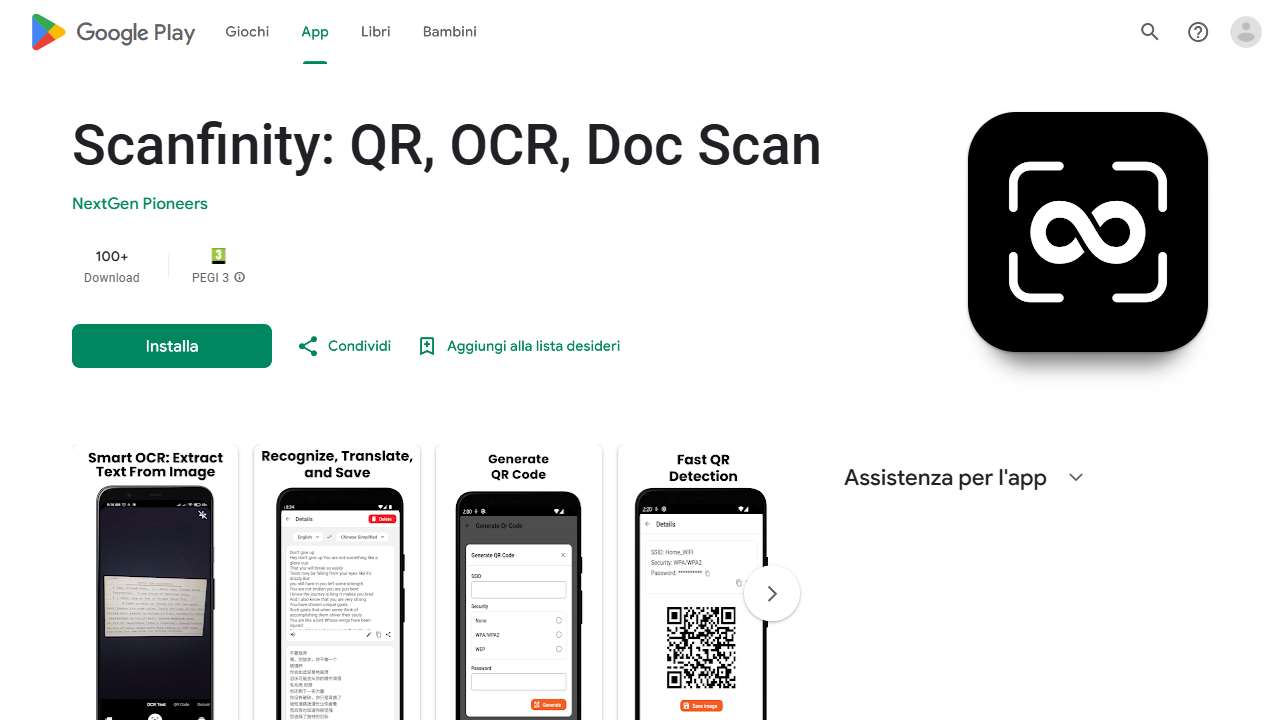
Comprehensive app for document management, OCR, QR codes, and PDF creation.
Digitally convert physical business cards to digital formats using OCR.
Extracts data from websites, converts images to text, and identifies tables with OCR.
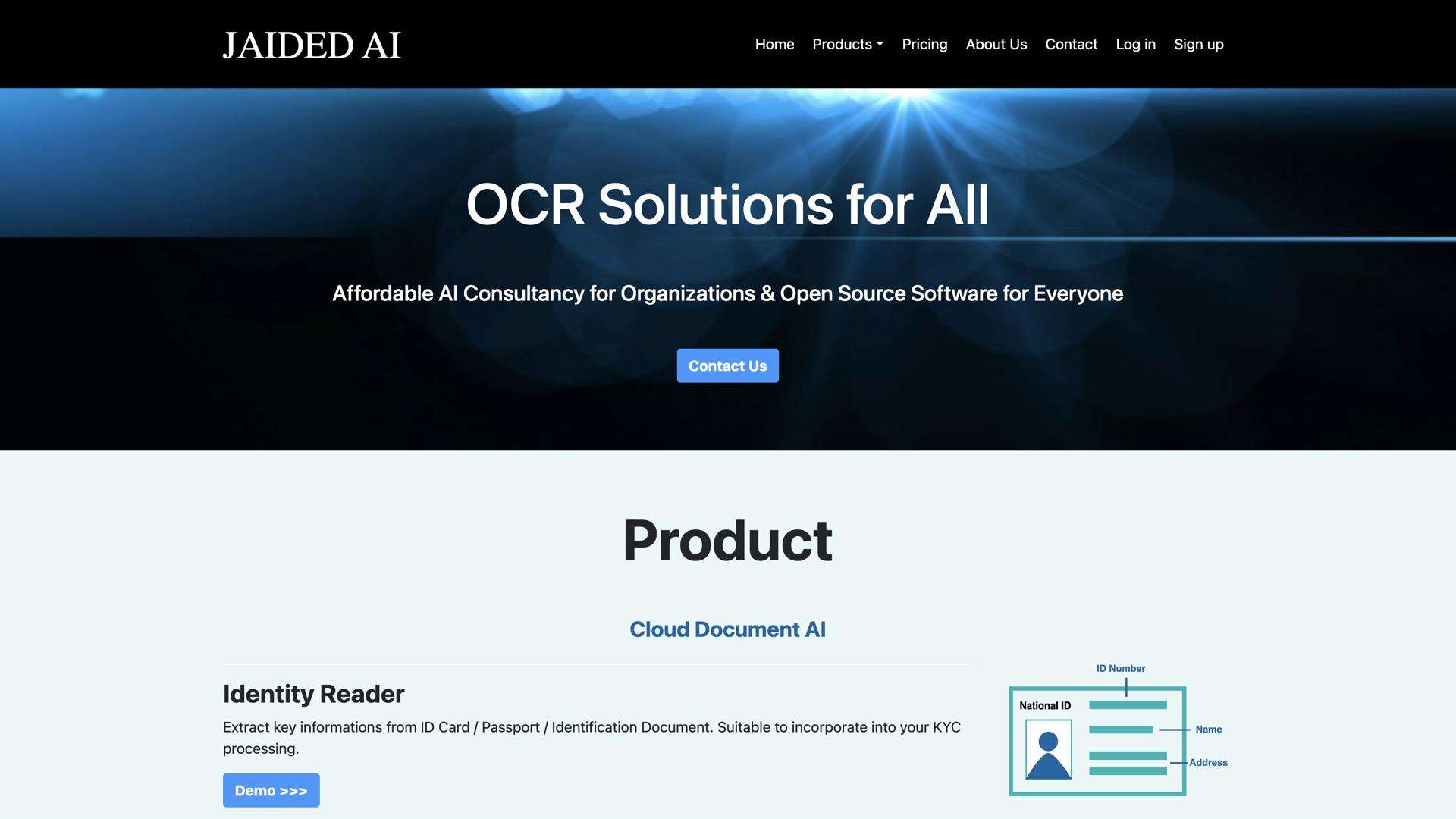
EasyOCR: AI-powered document scanning and recognition for fast, accurate digital conversion.
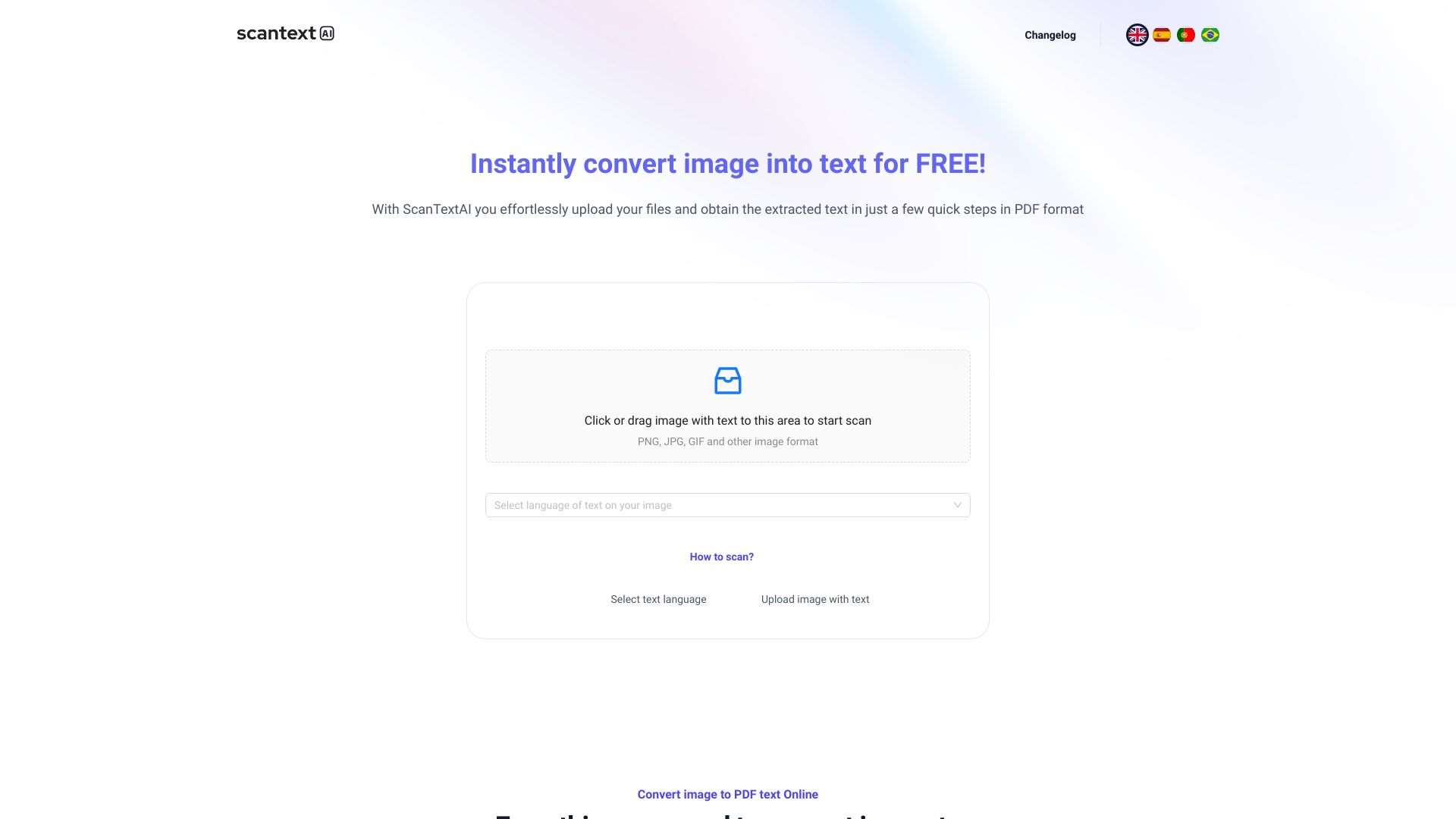
ScantextAI converts images and scanned documents into editable text using OCR.
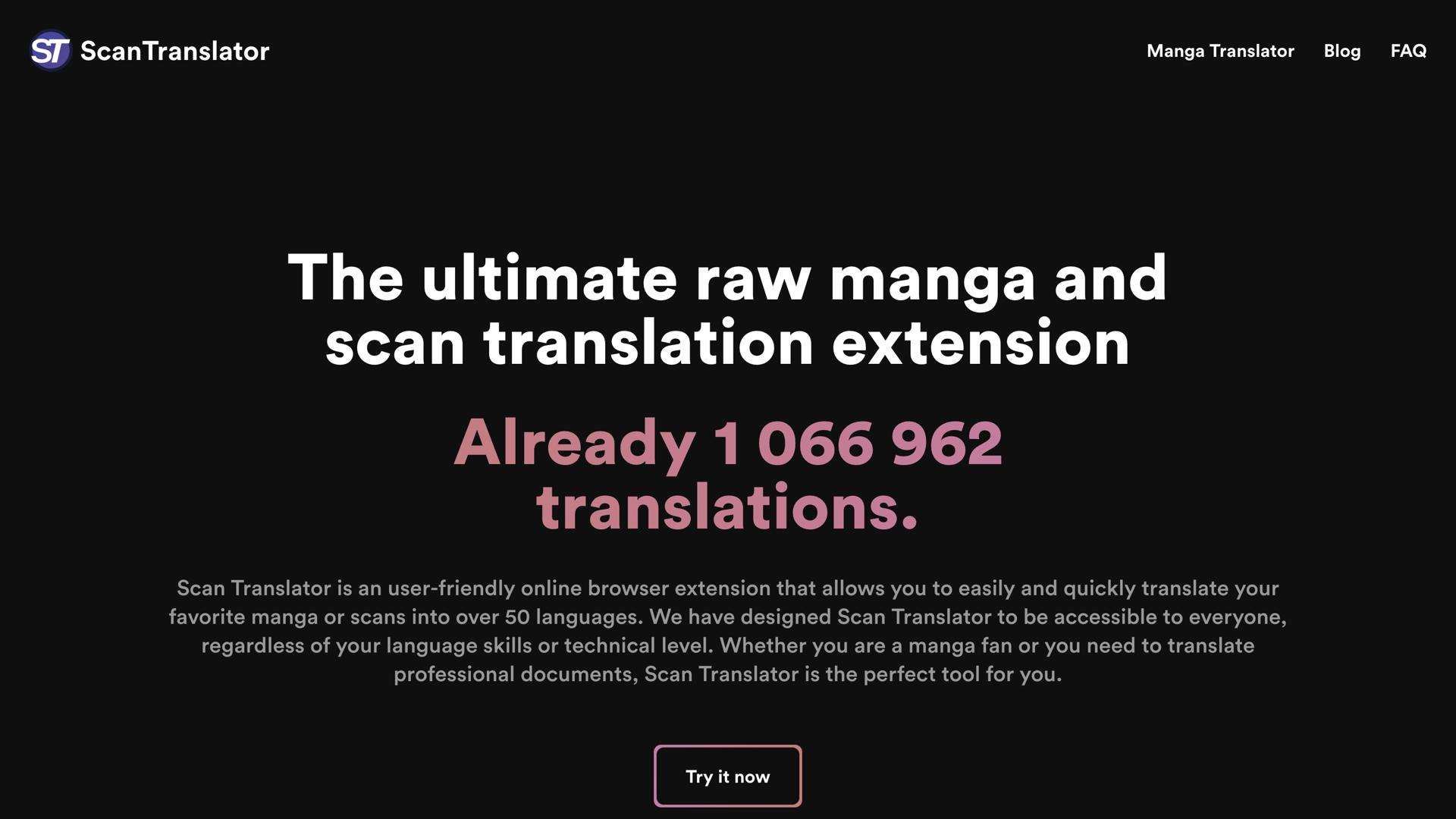
Quickly translate documents, images, and text to your native language with powerful OCR technology.
Practical Takeaways for Professionals and Hobbyists
If you’re working with old or poorly scanned documents, the first rule of thumb is to pair a robust pre‑processing routine with a strong OCR engine. In my tests, tools that offered built‑in de‑skewing and denoising consistently outperformed those that required manual cleanup. For batch processing, cloud APIs (a_OCR, Nanonets, OLOCR) usually provide the best trade‑off between speed and accuracy.
For occasional use or personal projects, the free tools (EasyOCR, Scanfinity, Scan Translator) are surprisingly competent, especially when combined with a quick image editor to enhance contrast. However, expect a higher error rate, so make sure to review and correct the output manually once for safety.
Finally, keep an eye on the evolving field of OCR. Many providers are starting to fuse OCR with AI‑based document analysis, allowing not just text extraction but semantic understanding. This could be particularly valuable when dealing with legal or financial documents where the context matters just as much as the words.
Conclusion
Low‑quality scans present a real hurdle for OCR tools, but the technology is evolving fast enough that even imperfect images can be turned into reliable data. The key lies in choosing the right combination of pre‑processing, language support, and integration capabilities. By testing with generic consumer‑grade scans, I found that while no single tool achieves perfect accuracy, a thoughtful blend of free and paid services can deliver results that meet most practical needs. Use the tools below as a starting point, and iterate on your workflow to squeeze the maximum quality from every scan you encounter.