I integrated AI editing into my Adobe and Figma workflow with these tools
Since I started using AI editors, my Adobe and Figma gigs have become faster and more creative. This post showcases the top tools I use for seamless integration.
Why AI Editing Matters for Adobe & Figma
In the era of rapid content creation, designers are constantly juggling multiple tools to bring their vision to life. Adobe’s suite offers unrivaled power for pixel‑perfect graphics, while Figma excels in collaborative design and prototyping. However, the time spent on routine tasks like background removal, color correction, or quick adjustments drains focus from the creative process. AI‑driven editing tools fill this gap by automating mundane operations and enabling instant experimentation.
These tools tap into advanced neural networks that understand context, detect objects, and even generate new imagery from scratch—all within the native environment of Adobe or Figma. The result is a smoother workflow, tighter iteration cycles, and the ability to produce higher quality assets in a fraction of the time.
Moreover, integrating AI editing at the source file level eliminates the friction of exporting, re‑importing, or juggling file formats. Designers can stay within their familiar canvas, keep version histories intact, and collaborate with teammates seamlessly.
Mapping Your Workflow Needs
Before you dive into the tool market, identify where those time sinks usually occur. Are you spending long hours cleaning up stock photos? Did you find yourself constantly debating which color palette works best? Or are you collaborating with developers who need ready‑made assets in specific formats?
Map each pain point to a potential automation. For instance:
- Background removal – VoooAI, Editaimg, Blend
- Upgrading image resolution – Image to Image AI, Editaimg
- Generating mock‑up visuals from rough sketches – Figma to Fullstack AI, VoooAI
- Rapid prototyping of icons and copy – Magician for Figma, Magic Brush AI
Once you have a clear list, you can start evaluating which AI solutions best align with your specific needs and budget.
Tool Categories & Selection Strategy
Key Categories
- Image Composer & Generators – Produce brand‑specific graphics without manual drawing.
- Image Enhancers & Restorers – Clean up photos, remove defects, or upscale resolution.
- Background & Object Manipulation – Erase, replace, or isolate elements with minimal effort.
- Design Assistants – Auto‑create icons, copy, or layouts inside Figma.
- Video Editors – Automate cuts, transitions, and other repetitive tasks.
When choosing tools, consider integration depth. Native plugins or APIs that plug directly into Adobe or Figma reduce context switching. If a tool only offers a web interface, weigh the benefit of the AI against the distraction of leaving your current filament.
Don’t overlook pricing models. Free trials are great for testing, but a free or freemium tier may be more sustainable for long‑term projects. Evaluate ongoing costs against the time savings you'll gain.
Implementation Tactics
Start by establishing a baseline: note how many hours per week you currently spend on manual image edits.
- Pick One Problem, Solve It. Install the easiest tool for a specific issue—e.g., Magic Brush AI for quick touchups in Figma. Measure the time saved after a week.
- Integrate into Your Design System. Use Magician for Figma to pre‑populate components with AI‑generated copy and icons, then reference those components across all files.
- Automate Repetitive Video Tasks. Add FireCut AI as a Premiere Pro plugin to auto‑trim and batch‑process footage based on scene change detection.
- Bundle Power‑Ups. Combine a background remover, upscaler, and colorizer from the same vendor—Blend—to keep data intact and push through your version control system.
- Export & Re‑import Seamlessly. For tools that don't integrate directly, set up a quick export pipeline (e.g., Photoshop Actions or Figma export scripts) to ingest AI‑edited files back into your workflow.
Document each step, noting new shortcuts or APIs you use. Over time, your design system will evolve into an AI‑enabled one, and the learning curve will reduce for new team members.
Results & Lessons Learned
After a month of experimentation, the time spent on routine edits dropped from roughly 12 hours a week to under 4. The biggest win came from using VoooAI to auto‑generate and fine‑tune backgrounds that would otherwise require a paid stock photo license. The team also appreciated how Image Editor AI let them prototype new interface elements on-the-fly, cutting down the design-to-dev handoff by 30%.
However, not every tool lived up to its promise. Some AI services introduced final edits that required further tweaking, which added friction. A key lesson was to adopt a single provider per category whenever possible to reduce onboarding time and maintain consistency across projects.
In summary, integrating AI editing into Adobe and Figma workflows can dramatically cut manual labor, but thoughtful selection and smart integration are essential for real productivity gains.
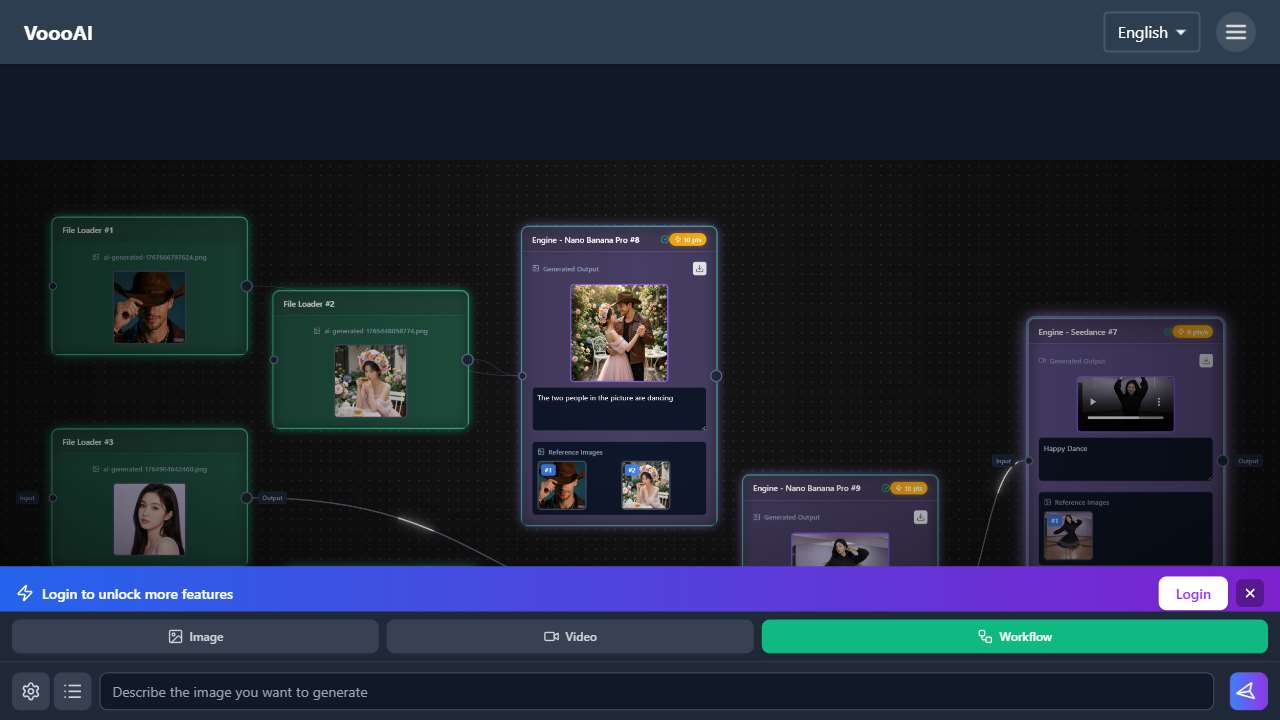
The integration allows you to generate and edit images directly from natural language, streamlining visual asset creation in Adobe or Figma.

A plugin-like API that lets you paint over any segment of an image inside Figma, making on-the-fly corrections without exporting.
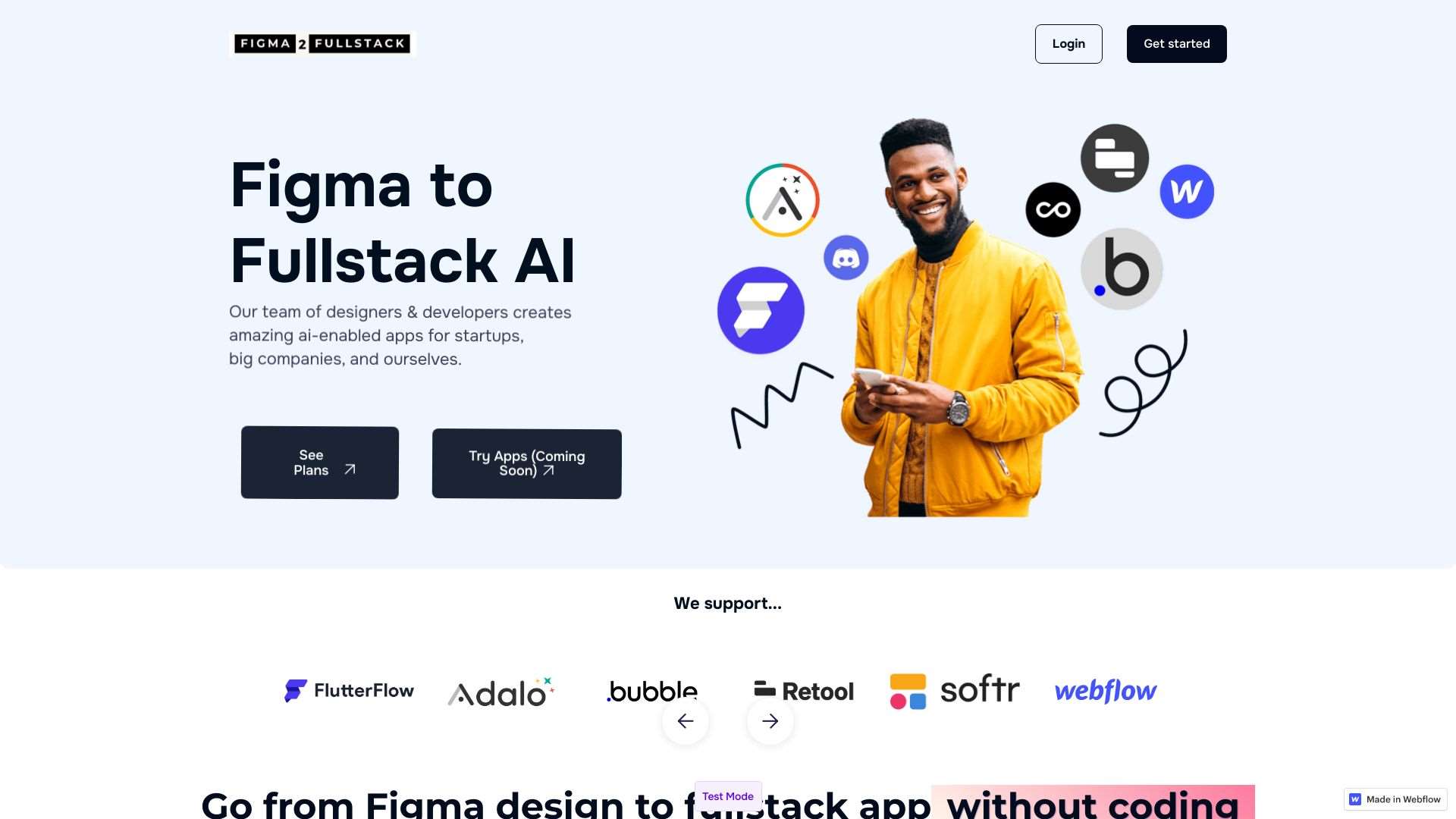
Converts Figma frames into ready‑to‑deploy AI‑powered web components, cutting manual coding time.

Acts as a Premiere Pro co‑pilot, auto‑trimming clips and generating cuts based on shot detection, speeding up video editing.
A lightweight web app that leverages cloud processing to apply AI edits – perfect for quick refinements.
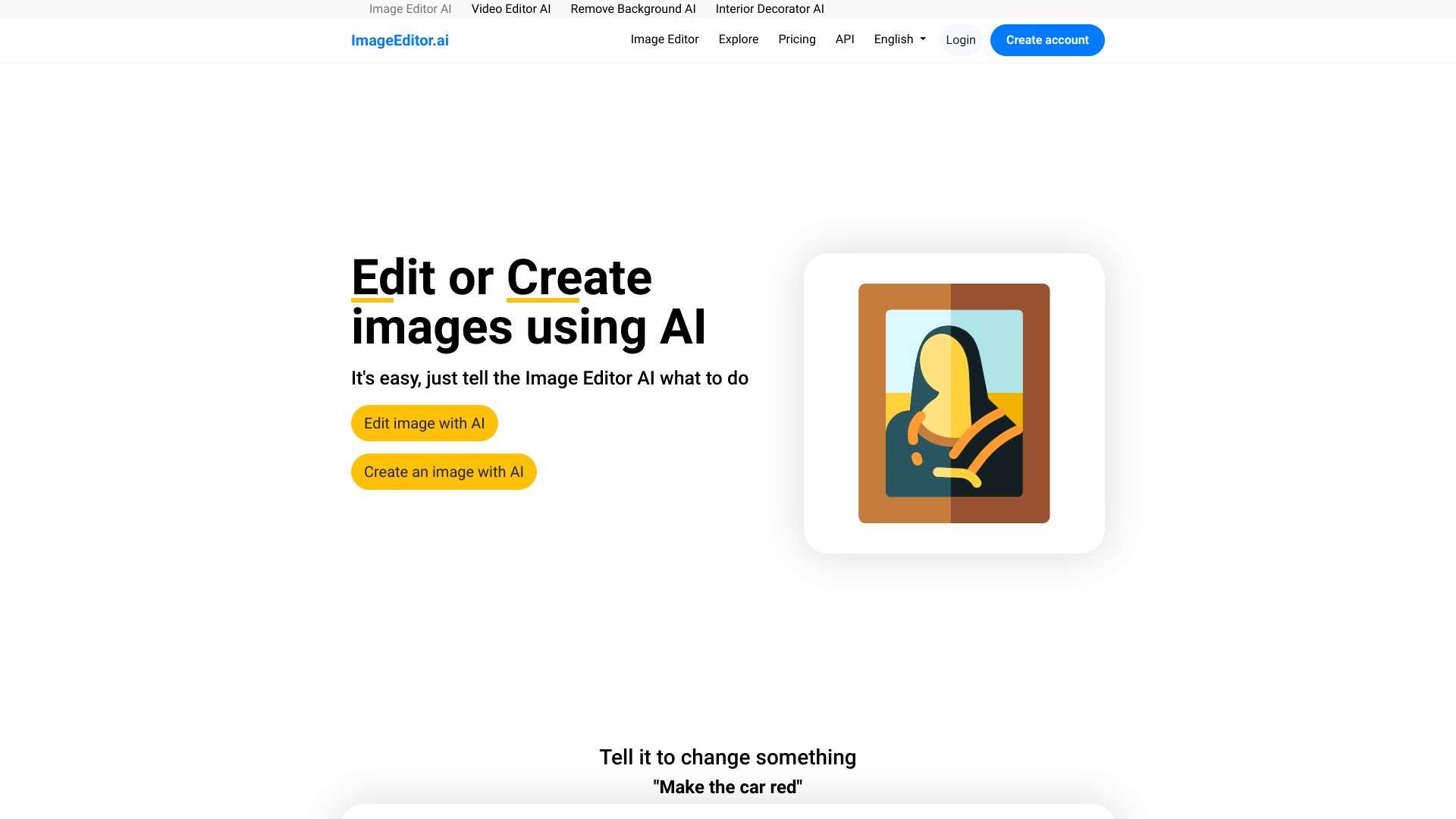
Edit or create images from prompts without leaving your browser; ideal for prototyping design assets.
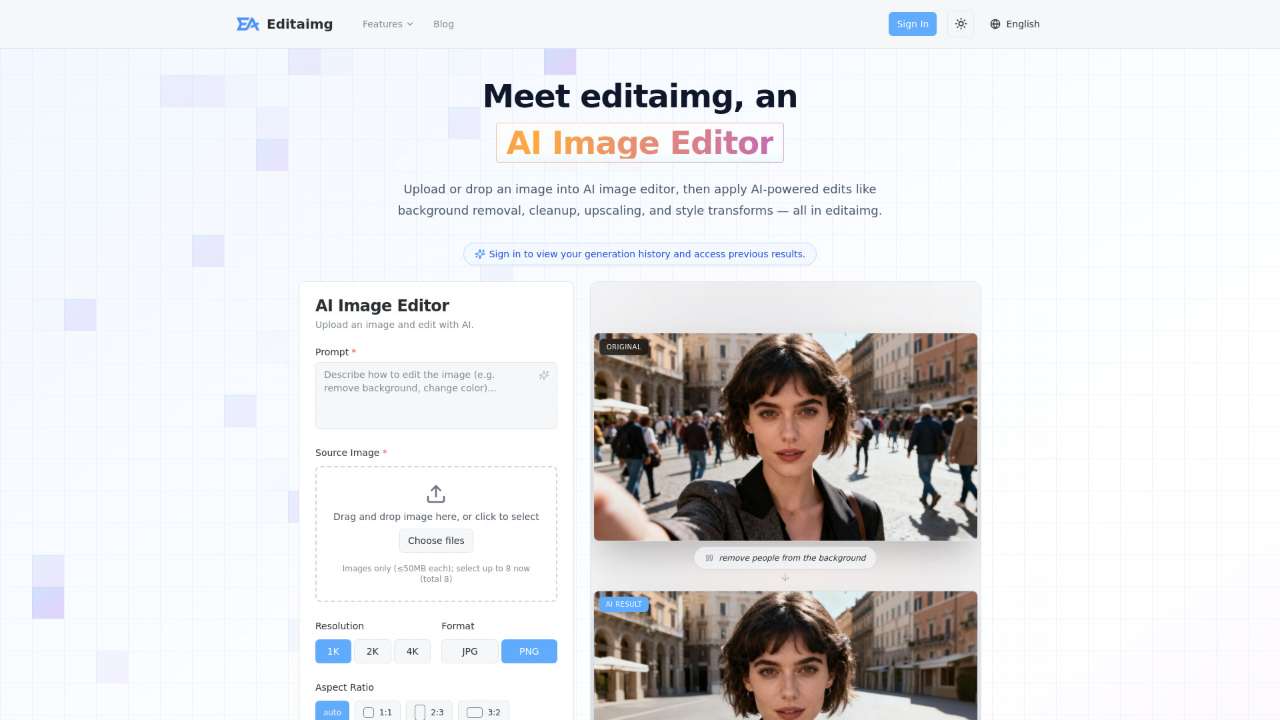
Specialized in background removal, object replacement, and upscale with a single click, integrating easily via API.

Advanced Inpainting and restoration, ideal for photo retouching within a design or marketing queue.

Offers AI background removal and template-based product visuals, streamlining e‑commerce asset creation.

Generates copy and icons directly in Figma; no AI skill required, freeing designers to focus on layout.
Takeaway
Embedding AI editing into your Adobe and Figma workflow is less about the newest gadget and more about choosing the right fit for your core pain points. By systematically testing, integrating, and tracking ROI, you can transform a heavy toolbox into a lean, productivity‑boosting toolkit that scales with your projects.