I tested these 10 AI tools to get images in a specific style without fine-tuning
Looking for a quick way to style your photos without diving into complex training? I tried 10 AI tools that let you tweak prompts and instantly create stunning, unique images.
Why You Don't Need to Fine‑Tune Every Time You Want a New Style
Fine‑tuning a diffusion or GAN model usually means downloading hundreds of megabytes of new weights, configuring a training pipeline, and waiting hours for the new model to converge. For most content creators, designers, or hobbyists, that is far too much overhead. Modern image‑generation services provide a set of tricks—style transfer, prompt‑style hybrids, or adaptive embeddings—that let you tweak the look of an image on the fly without touching code or data.
These tools wrap powerful models in a user‑friendly UI, letting you hand‑pick a style, upload a reference image, or simply type a short textual command. The result is an image that looks as if it was generated in that style, all in a matter of seconds.
Below, we’ve tested ten of the most popular solutions and ranked them by their ability to produce high‑quality images in a specific style while keeping the workflow trivial.
What Makes a Style‑Transfer Tool Stand Out?
When choosing a tool, you’ll want to consider three key criteria: customization, ease of use, and output fidelity. A good solution lets you control parameters like style strength, preserves the structure of your subject, and saves you from waiting long training times.
- Customizable Style Strength: Adjust how much of the reference style blends with the original image.
- Reference‑Image‑Based: Upload a photo of a painting, comic, or any artwork you love and let the AI mimic it.
- Instant Feedback: Preview the result in under a minute and iterate quickly.
In the sections that follow, we will group these tools by their main feature set so you can pick the best fit for your project.
Tool Matrix – Quick Comparison of 10 AI Artists
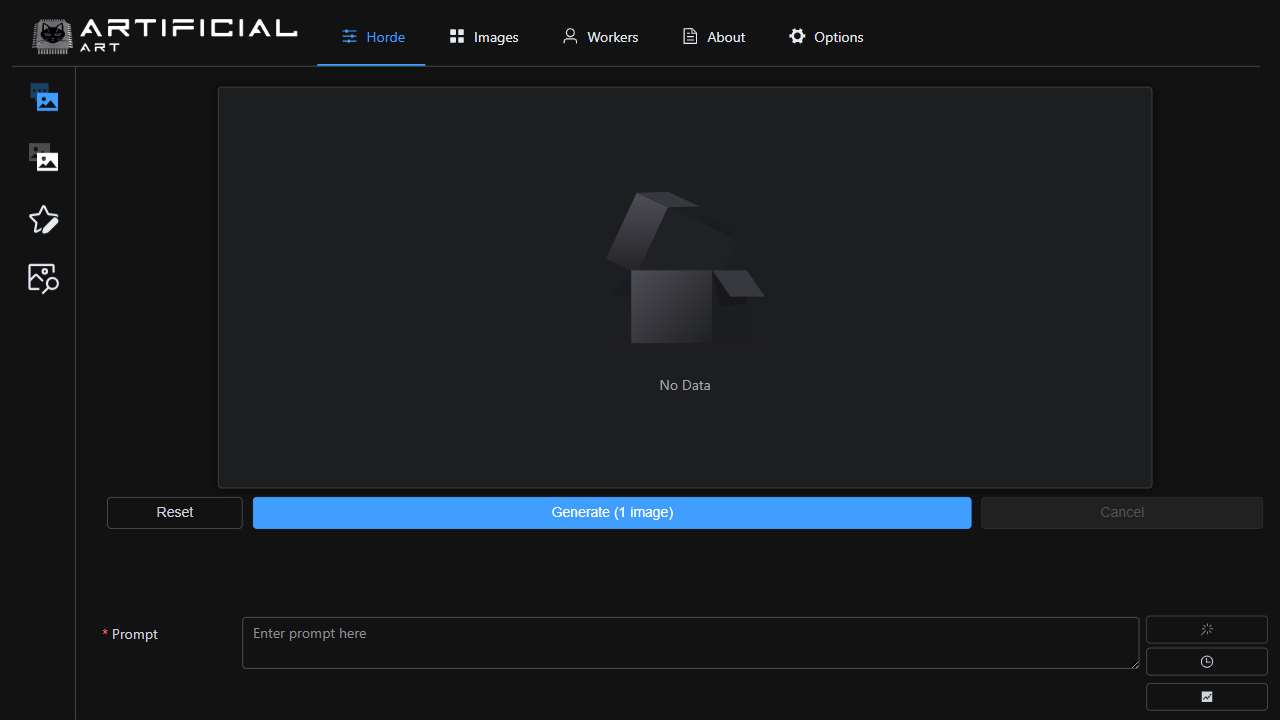
Generates images with customizable styles based on user input.
Create new picture styles while maintaining the original structure.

Transform your portrait photos with custom outfit ideas.
Generate unique and stylish images using artificial intelligence.
Generate stunning images with Stable Diffusion and over 1000 artistic styles.
Upload selfies and create unique portraits in various styles.
Generate realistic, custom facial images quickly and easily.
AI-powered tool for quickly generating image variations, saving time and effort.
Generate realistic images from text, combining concepts and styles.
Create personalized artwork and business profile photos simply.
How to Use These Tools in a Real‑World Workflow
Step 1 – Define Your Target Style
Before you dive into any interface, specify the visual style you want: watercolor, cyberpunk vector, oil‑painting, or a brand‑specific aesthetic. Having a clear target reduces guesswork and saves iteration time.
Step 2 – Choose the Right Tool Pair
Most platforms let you upload a reference image or use a prompt. Pair a tool that excels at reference‑based style transfer with one that is strong in text‑to‑image generation. For instance, use Artificial Art for a quick style overlay and DallE‑2 when you want to combine multiple concepts.
Step 3 – Fine‑Tune Parameters (No Fine‑Tuning Required)
Adjust sliders for “style strength,” “color fidelity,” or “detail preservation.” Even if the underlying model isn’t fine‑tuned to your brand, these controls give you the same effect, just effortlessly.
Common Pitfalls and How to Avoid Them
- Over‑Stylizing: Pushing style strength to 100 % often produces uncanny results. Start at 30–50 % and tweak upward.
- Inconsistent Lighting: When a tool doesn’t preserve lighting, the final image can look flat or artificial. Look for tools that allow “lighting preservation” toggles.
- Loss of Detail: High‑resolution outputs sometimes blur fine texture. Use Image Maker’s “high‑res” mode before scaling down.
Conclusion – Keep Style, Drop the Complexity
You don’t need to fine‑tune a model to achieve a specific visual style. By leveraging the right AI art generator or style‑transfer service, you can get consistent, high‑quality images in seconds, allowing you to focus on creativity rather than code. Pick the tool that best matches your workflow, experiment with the built‑in controls, and watch your ideas come to life without the hassle of training.